
How to delete your cloud copy
Deleting the cloud copy stops sync. Groups, tasks, and changes on the device you use to delete it are kept. This cannot be undone. You need an internet connection and current access to the list.
App Store versions also delete the associated Apple recovery records. To delete only those records and keep sync, follow the Apple recovery section below.
iPhone and Mac
The steps are the same on both platforms.
- Open your list. Tap or click the cloud button labeled “Sync” in the top right, to the left of the gear.

- Expand “Data and privacy” and select “Delete cloud data”. The app checks access to the list before deleting anything.
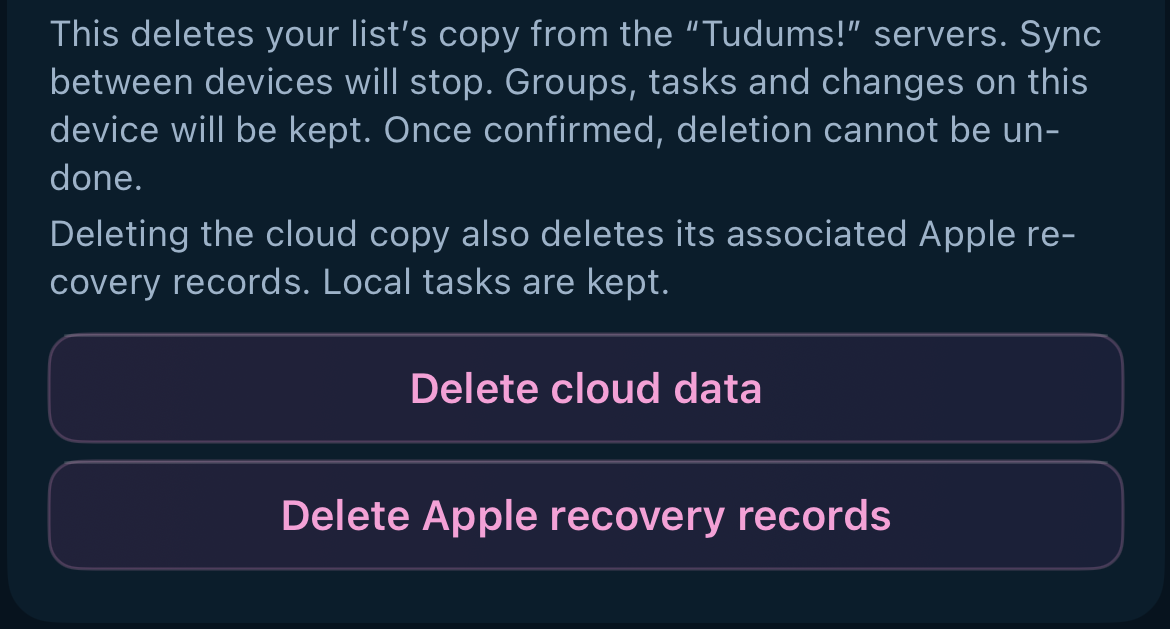
- Read the explanation and select “Confirm”. You can choose “Cancel” before confirming.
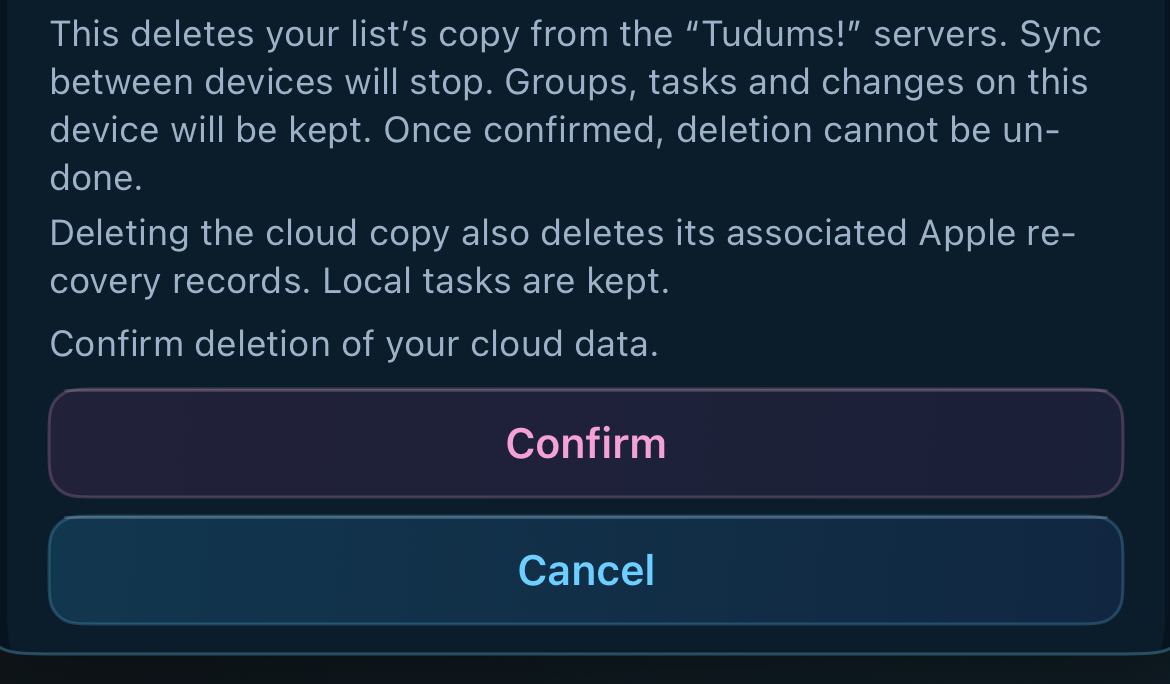
- Wait for “The cloud copy was deleted. Tasks and changes on this device are saved.” If cleanup is still pending, follow the troubleshooting steps below.
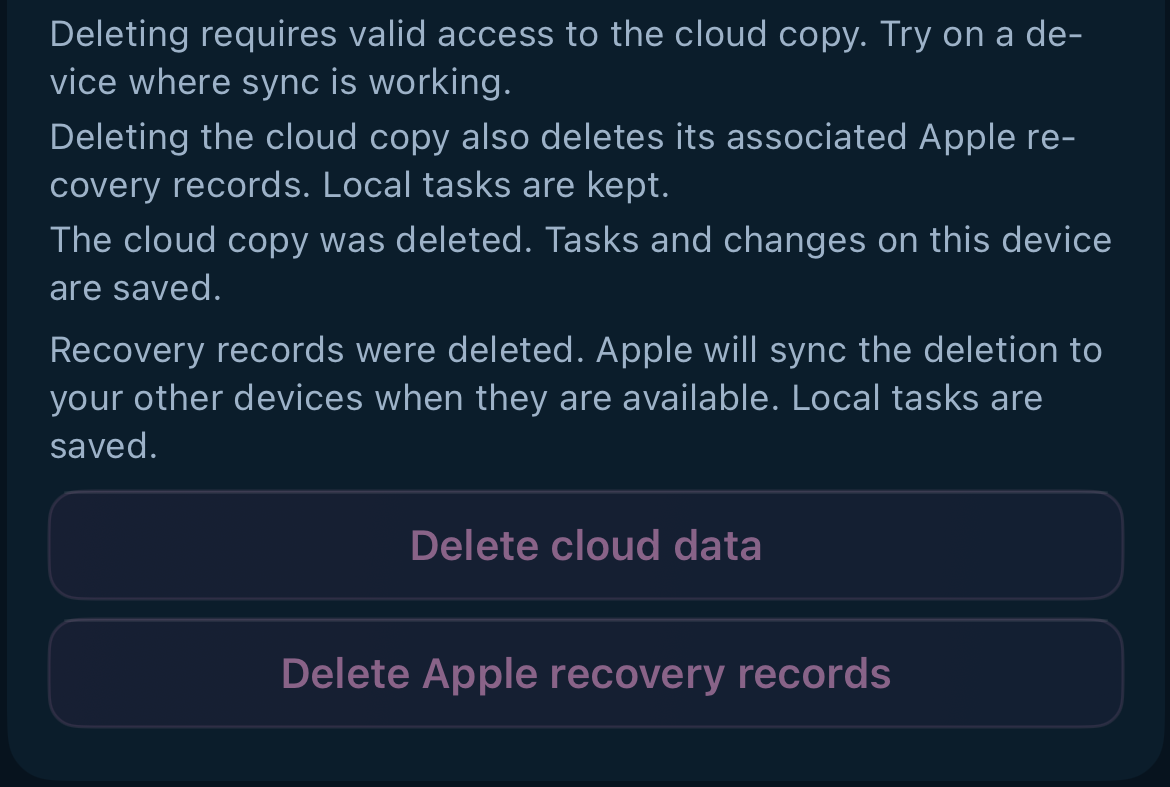
If other devices are connected
- Make sure this device has your latest changes. Wait for the connected devices to finish syncing.
- In “Sync”, expand “Data and privacy”. Under “List protection”, select “Update keys”.

- At “Update keys and disconnect other devices?”, confirm with “Update keys” again. Other devices lose access to the cloud copy. Do not reconnect them before deletion.
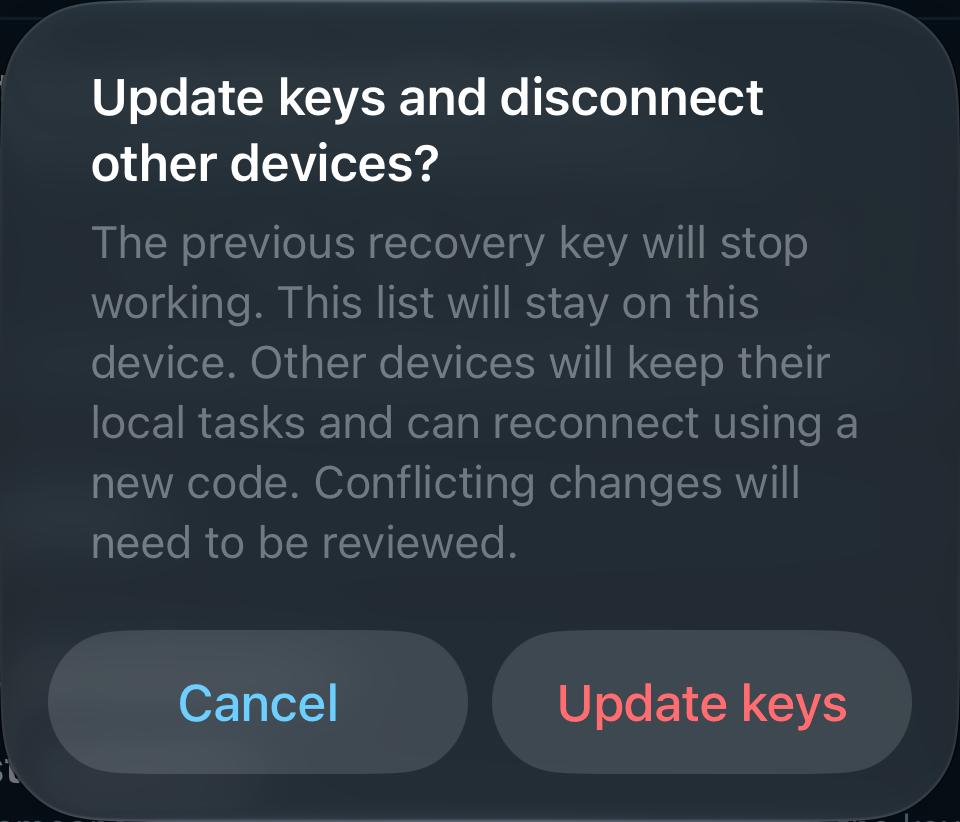
- Wait for the keys to update, then return to “Data and privacy” and repeat the deletion steps.
How to delete only Apple recovery records
This option is available in the iPhone and Mac App Store versions. It disables recovery through Apple for this cloud copy. The cloud copy, normal sync, and local tasks remain.
- Open “Sync” and expand “Data and privacy”.
- Select “Delete Apple recovery records”.
- Read the explanation and select “Confirm”. You can choose “Cancel” before confirming.
- Wait for completion. If “Retry deleting Apple records” appears, select it and wait for the result.
The web app and the Mac version from the website do not use Apple Keychain recovery and do not have this option.
If deletion did not finish
If the app cannot check the status of Apple record deletion, select “Check Apple records again” to check the saved status again.
A connection error does not mean deletion finished. Keep the app and its data, restore your internet connection, and return to “Sync”.
Follow the prompt if “Try again” or “Check access again” appears. If the server copy is gone and Apple cleanup is still pending, select “Retry deleting Apple records” or “Finish deleting Apple records”, as shown. Local tasks are kept. Keep the app open to complete the retry.
If the action is unavailable or you have lost access, try a device still connected to the list. Use an available recovery method first. If all devices and recovery methods are lost, an email, name, or list ID alone cannot prove ownership.
For help, email support@tudums.app. Do not send tasks, keys, access tokens, or recovery codes.
What gets deleted
“Delete cloud data” removes the active server copy and stops sync. App Store versions also remove this list’s Apple recovery records. The rest of Apple Keychain and records for other lists remain.
“Delete Apple recovery records” removes only those records and disables Apple recovery for this copy. Normal sync continues.
Both actions keep local tasks, exports, and support correspondence. Server backups expire separately under the retention rules. Apple controls how deletion propagates between devices, so the app cannot confirm immediate removal of every Apple copy or copies on unavailable devices.
A minimal technical deletion record prevents a deleted copy or disabled recovery from returning after a server restore. It contains no tasks or access keys.